A Two-Minute Walkthrough of ChatGPT Auto-Continue Controls
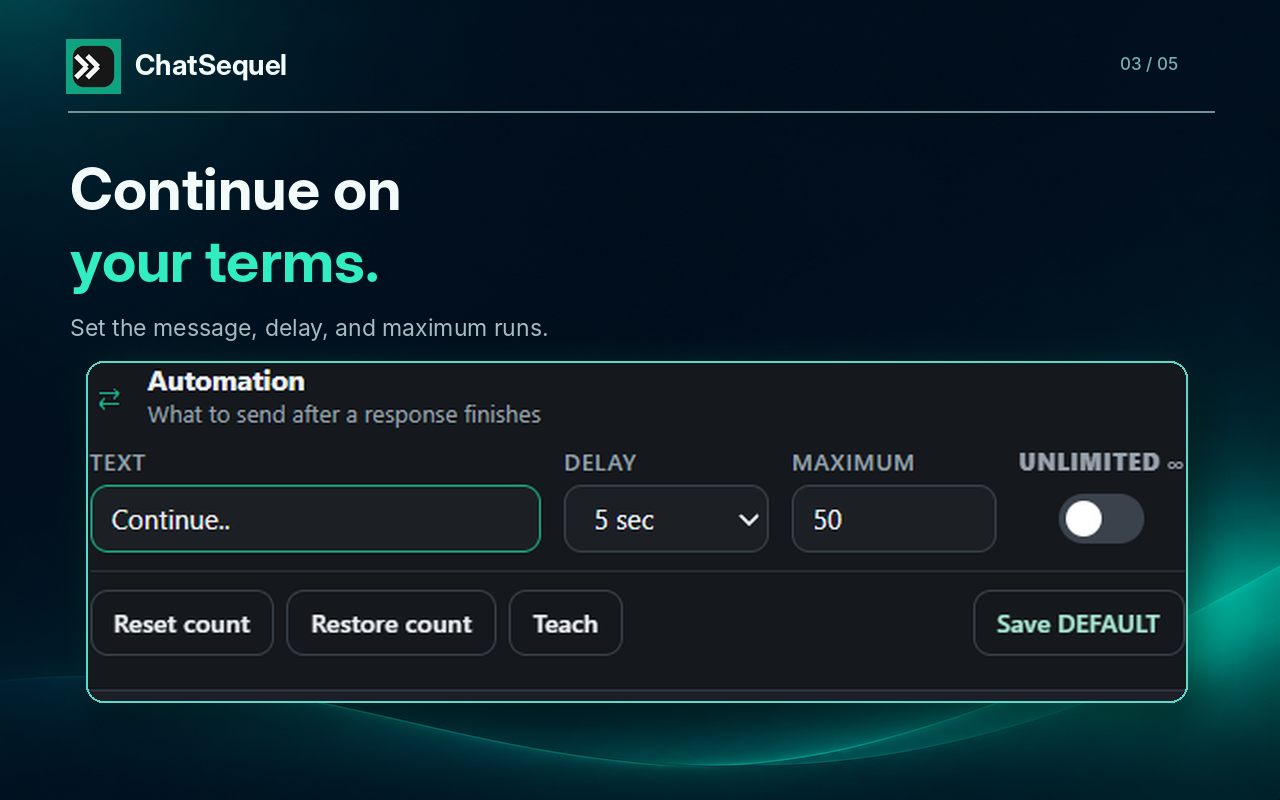
Before trusting an automated continuation with a long ChatGPT task, try a short demonstration first. Use a harmless prompt so you can learn the controls without risking a real document.
Start with a reversible test
Open one new ChatGPT tab and request a three-step outline for organizing a reading list. Avoid personal data and anything time-sensitive. The purpose is to test the workflow, not to judge the answer. Start continuation only in the tab you intend to use.
Inspect the countdown
Choose a delay that leaves enough time to read the current reply. Watch the visible countdown before the next continuation. Ask yourself whether the next prompt could arrive while you still need to check a claim. When using multiple tabs, check the controls separately instead of assuming their settings match.
Practice interruption
Pause during a countdown, read the last answer, and resume only when ready. Then try stopping the test. Note the counter and optional limit so you can choose a sensible boundary before a real session. A cap limits repeated steps; it does not verify accuracy or guarantee task completion.
Record what you learned
Keep four notes: the original request, the last checked result, what remains unanswered, and the next instruction. Those notes make a future context handoff easier and reduce the urge to paste an entire conversation into a fresh chat.
ChatSequel by Prax9 offers optional timed ChatGPT continuation, per-tab start, pause, resume and stop controls, a countdown, a counter, an optional cap, and a context handoff workflow. It organizes the interaction; review and fact-checking remain your responsibility.
ChatSequel is an independent extension by Prax9 and is not affiliated with or endorsed by OpenAI.